Checking invoices and data? Your AI assistant can do it in seconds
Ask a question and get the answer faster than it would take you to open your InvoiceOcean panel. Connect Claude, Codex or another AI assistant and ask about invoices, clients and settlements in plain language – as if you were asking a colleague.
Your InvoiceOcean, just much faster
Our MCP (Model Context Protocol) lets AI assistants connect to InvoiceOcean and work with your data. That means you move fast without worrying the assistant will “break” anything, since it has no way to alter the data it analyses.
An answer in seconds
Ask, and you instantly get the data from InvoiceOcean – no logging into the panel, no manual searching.
An ordinary conversation, extraordinary speed
You don't need to query the assistant with special commands. You write in your own words, and the assistant immediately understands what you mean.
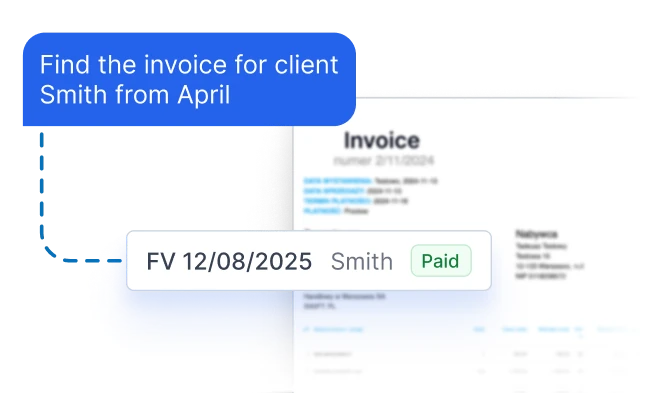
Find any invoice in a second
Ask by number, buyer, date or status – the assistant will find the invoice faster than you could open your InvoiceOcean panel.
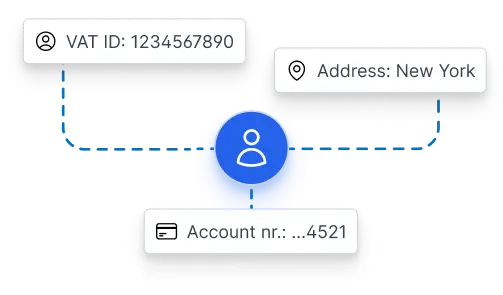
Simple client data verification
Tax ID, address, account number, collaboration history, all with a single question, no need to search through client cards.
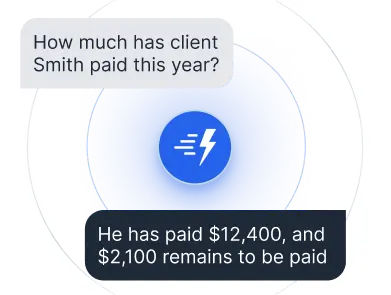
Calculations without a calculator
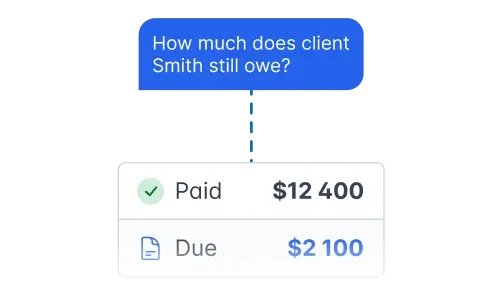
How much a client has paid, how much is still due, in what currency, a ready answer instead of calculating everything manually.
Zero extra fees
Access to MCP is included in your InvoiceOcean plan, you pay nothing extra for the connection.
The assistant you already use
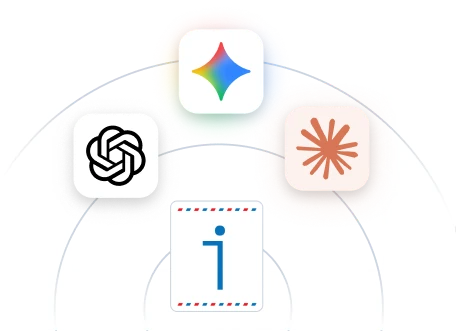
Claude, Codex or any other model, connect whatever you already use every day.
-
An answer in seconds
Ask, and you instantly get the data from InvoiceOcean – no logging into the panel, no manual searching.
-
An ordinary conversation, extraordinary speed
You don't need to query the assistant with special commands. You write in your own words, and the assistant immediately understands what you mean.
-
Find any invoice in a second
Ask by number, buyer, date or status – the assistant will find the invoice faster than you could open your InvoiceOcean panel.
-
Simple client data verification
Tax ID, address, account number, collaboration history, all with a single question, no need to search through client cards.
-
Calculations without a calculator
How much a client has paid, how much is still due, in what currency, a ready answer instead of calculating everything manually.
-
Zero extra fees
Access to MCP is included in your InvoiceOcean plan, you pay nothing extra for the connection.
-
The assistant you already use
Claude, Codex or any other model, connect whatever you already use every day.
You can find the MCP Service Terms here.
Ask freely. Get the answer right away, no searching
You don't need to know any special syntax. Just ask the way you'd ask a colleague:
-
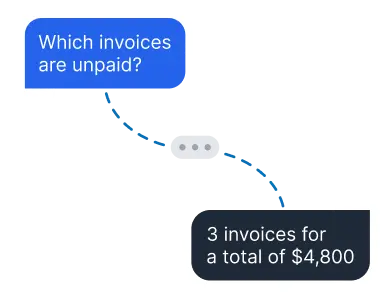
“Which invoices are unpaid, and how much do my clients owe me in total?”
-
“Show me purchase invoices from March in EUR”
-
“How much has client Smith paid this year, and how much is still outstanding?”
-
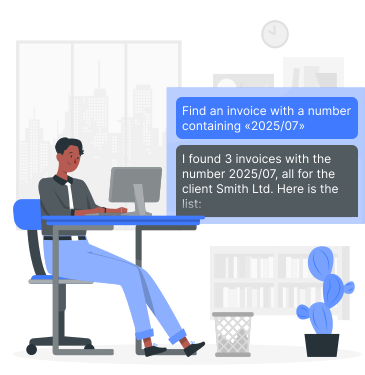
“Find the invoice whose number contains «2025/07»”
The assistant picks the right tool on its own and chains the steps – for example, first finding the invoice to identify the client, then calculating their settlements.
Faster work, a secure connection
You decide which AI assistant to connect and for how long it has access to your account.
-
Read and analyse, no interference
The AI assistant can only read data, it will never issue, change or delete an invoice without your involvement. It can summarise data, cross-reference it and explain it, but any change to the account stays on your side.
-
Login without passwords
Access is granted through a secure OAuth login in the browser. No passwords or tokens are pasted into the assistant. You log in through the InvoiceOcean window, just as you would to your own account, the assistant is only granted read access, never your login credentials.
-
Control at any time
You'll find the list of connected assistants and the option to disconnect them in your account settings, revoke access with a single click. From that moment on, the assistant will no longer retrieve any new data from InvoiceOcean.
-
Data goes to the AI assistant you choose
After authorization, data from InvoiceOcean is transferred to the infrastructure of the AI provider you choose (Anthropic, OpenAI, Google and others). Processing, retention and data location are governed by that provider's own rules, review its privacy policy before connecting.
No extra charges
Zero cost for access itself. InvoiceOcean MCP is included in your current plan, you pay nothing extra for the connection. The only cost to factor in is the subscription or tokens of the AI assistant you choose, billed directly by its provider.

Works with the assistant you already know
InvoiceOcean MCP works with Claude Code, Claude Desktop, Codex and any other client that supports remote MCP servers via Streamable HTTP and OAuth 2.1 with PKCE.



Want to know more?
We show you, step by step, how to connect InvoiceOcean to your chosen AI assistant, configure access, and start asking questions. See the detailed guide in our Knowledge Base.
-
Already have an InvoiceOcean account?
Connect your AI assistant in minutes and start asking about your business instead of wasting time searching manually in the panel.
-
Don't have an account yet?
Create a free InvoiceOcean account and use the full functionality of the program – you can turn on MCP right after signing up.
Frequently asked questions
What is InvoiceOcean MCP?
InvoiceOcean MCP is a connection that lets an AI assistant – such as Claude or Codex – read data from your InvoiceOcean account and answer questions about your business in plain language. Instead of clicking through the panel, you ask about invoices, clients and settlements, and get an answer in seconds. MCP (Model Context Protocol) is the standard that connects the assistant to InvoiceOcean in read-only mode only.
How much does InvoiceOcean MCP cost?
Using InvoiceOcean MCP is free – the connection is included in the price of your current plan and you don't pay for it separately. The only cost is the subscription or tokens of the chosen AI assistant, billed directly by its provider.
How do I connect an AI assistant to InvoiceOcean?
You can connect an AI assistant in a few minutes from your InvoiceOcean account settings, in the MCP integration section. You authorize access via a secure browser login, then ask questions in plain language, with no need to know technical commands. Important: only the user who is the Account Owner can connect an AI assistant to InvoiceOcean. You'll find the detailed step-by-step guide in our Knowledge Base.
Which AI assistants can I use?
InvoiceOcean MCP works with, among others, Claude Code, Claude Desktop and Codex. You can connect it to any AI assistant that supports remote MCP servers (the Streamable HTTP standard and OAuth 2.1 authorization with PKCE).
Is connecting an AI assistant to InvoiceOcean safe?
Yes, the AI assistant operates strictly in read-only mode and cannot change anything in your account. It gains access through a secure browser login, with no passwords pasted anywhere, and you can revoke it at any time with a single click in your settings. Once access is revoked, the assistant will no longer retrieve any new data from InvoiceOcean. In this process, InvoiceOcean remains the controller/processor of your data under the Terms, while the AI provider you choose becomes a separate processor with whom you establish the relationship (including any DPA) yourself.
Can the AI assistant issue or change an invoice on my behalf?
No, an assistant connected via InvoiceOcean MCP works in read-only mode only. It can browse invoices, client data and settlements, but it will not issue, change or delete anything in your account.
What data can the AI assistant see?
The AI assistant only sees the data you ask about, and only from the account you connect. Access covers three areas: invoices, client data and client settlements. Beyond that, the assistant has no visibility into any other information.
Are my queries to the AI assistant stored by InvoiceOcean?
Yes, partially. The technical queries themselves (e.g. which function you used, what data was passed) go into standard logs, just as with any other use of InvoiceOcean. We keep them for 60 days and then delete them. Only authorised members of our technical team have access to the logs, and only when a specific case needs to be investigated or security needs to be ensured. The responses the AI assistant receives are not stored. They are generated only to answer your query and are immediately removed from the system. The only thing kept permanently is information about the connection itself: which application was connected to your account, and when.
Do I need to log in every time I want to ask something?
No – you authorize access once, and the connection to InvoiceOcean is maintained and refreshed automatically. You can revoke access at any time in your account settings.
How do I revoke the AI assistant's access to my data?
You can revoke access in your InvoiceOcean account settings, in the list of authorised applications – one click blocks the connection. You can do this at any time, without contacting support. Revoking access blocks the assistant from reading any further data. However, it does not delete data the AI assistant may already have stored or processed outside InvoiceOcean – that depends on the retention rules applied by the AI provider.
I have several companies in InvoiceOcean – can I connect all of them?
Yes – each InvoiceOcean account has its own MCP address, so you connect and authorize each company separately.
Does my data leave InvoiceOcean once I connect an AI assistant?
Yes. Once you authorize it, the data the assistant queries is transferred to the infrastructure of the AI provider you choose (e.g. Anthropic, OpenAI, Google). InvoiceOcean has no influence over how that AI provider further processes the data – we recommend reviewing its privacy policy and data processing terms.
Once MCP is activated, can data from InvoiceOcean be processed outside the European Economic Area (EEA)?
Yes, that's possible – it depends on the AI assistant you connect. Before you start using the MCP service, be sure to review the terms and privacy policy of the chosen AI assistant. Check how it processes data, how long it retains it, and where its servers are located – some providers process data outside the European Economic Area (EEA). That way you'll know exactly what you're agreeing to before connecting the assistant to your account.
Where can I read the terms of the MCP service?
When you connect an AI assistant to your account, you'll see a consent screen where we've highlighted the key terms you're agreeing to. However, before activating the service, be sure to review the full MCP rules. These rules – including the scope of data made available and the scope of our liability – can be found in the MCP Service Terms. Separately, before connecting your AI assistant to InvoiceOcean, review that assistant's own data-processing rules and its use of data to improve AI models.
Try the full power of InvoiceOcean for free!
Try it free for 30 days. Enjoy unlimited access to every feature – no setup fees and no long-term commitment.
Try it for free