Track the payment status of every invoice
See at a glance which invoices are issued, sent, partially paid, paid or overdue, and remind late payers straight from InvoiceOcean.
Try it for free
Payment status
Keeping your invoices in order is important - every business that issues more than a few invoices a month knows this. Once a document has been issued, you can add the appropriate status to it, which makes it much easier to navigate through invoices and sort them correctly.
InvoiceOcean allows you to assign a status (issued, sent, paid) to an invoice so you don't have to edit it again.
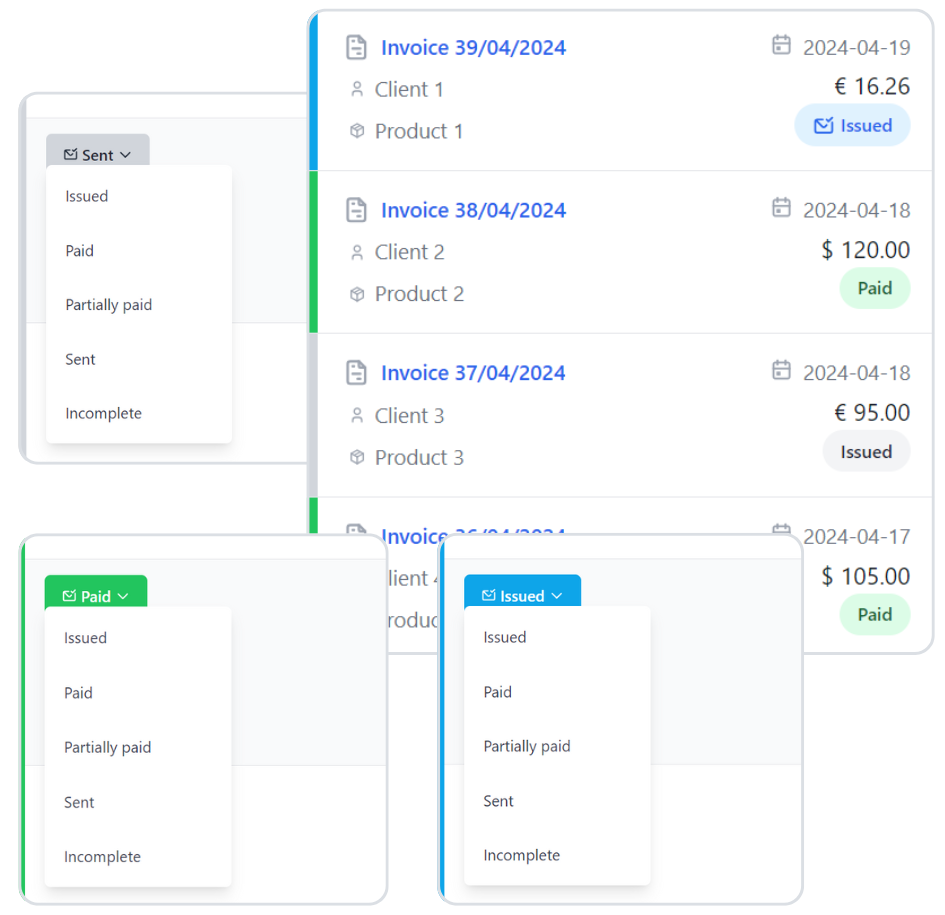
Invoice statuses in InvoiceOcean
Every document you issue has a status that tells you where the transaction stands at the moment:
- Issued - the invoice has been created.
- Sent - the invoice has been emailed to your client.
- E-mail not delivered - the message with the invoice did not reach the recipient.
- Partially paid - the client has paid part of the amount due.
- Paid - the invoice has been settled in full.
- Rejected - available for proforma invoices and estimates.
Statuses change automatically, and you can also change them by hand at any time.
What the colours on the invoice list mean
Grey marks an invoice that has just been issued. Blue marks invoices that have been sent but not yet paid and are still within their due date. Red warns you that an invoice is overdue - hover over the status to see how many days late the payment is. Green shows invoices that have been paid.
Partial payments and automatic updates
If a client pays in instalments, mark the invoice as partially paid and enter the amount received so far - InvoiceOcean works out the outstanding amount for you. With the Bank payments option switched on (available from the Professional plan), you can assign a payment to an invoice and the status changes to partially paid or paid on its own, depending on the amount. Invoices paid with the Pay online button are marked as paid automatically.
Reminders for overdue invoices
When an invoice is past its due date, you can send a payment reminder from the invoice preview or let InvoiceOcean send reminders automatically after the number of days you choose. Reminders are not sent for invoices marked as paid. The List of unpaid invoices in reports shows the number of days in arrears and how many reminders have been sent.
Payment status - frequently asked questions
How do I check the payment status of an invoice?
Open the invoice list. Each invoice shows its current status and a colour: grey for issued, blue for sent and not yet due, red for overdue and green for paid.
How do I change the status of an invoice?
Click the current status on the invoice list or in the invoice preview and choose the new one. You can do this more than once, for example from Sent to Partially paid and then to Paid.
Can my client check the status of their invoices?
Yes, in the Professional and Enterprise plans. When you enable the Client Panel in your account settings, you can give each client a link to a page with their documents and payment statuses.
Can I stop other users from changing invoice statuses?
Yes. In Settings > Account settings > Configuration > Users and privileges you can block status changes for users only or for users and administrators.